Editor
Write and organize the source files. This is where you type HTML, CSS and JavaScript.

Set up the tools around HTML: a code editor, a browser, DevTools, a clean folder structure and a simple edit-save-refresh workflow.
HTML editors
An HTML editor is the program you use to create and change files such as index.html,
styles.css and app.js. The editor is not the website itself. It is the workshop
where the code is written. The browser is the place where that code is read, interpreted and displayed.
You can write HTML in a very simple text editor, but a real code editor makes learning much easier. It gives you syntax highlighting, file navigation, search, formatting, autocomplete and often a built-in terminal. Those small tools prevent many beginner mistakes because they make the structure of your code visible.
The workflow
Beginners often think a web page is only the file they are editing. In practice, there are three views of the same project. The editor shows your source code. The browser shows the rendered result. DevTools show the live document after the browser has parsed the HTML, applied CSS and run JavaScript.
Write and organize the source files. This is where you type HTML, CSS and JavaScript.
Render the page. This is where you check layout, links, forms, responsive behavior and interaction.
Inspect the live DOM, CSS rules, console messages, network requests and performance clues.
Choosing an editor
The exact editor matters less than the habits it supports. Many developers use Visual Studio Code, but the principles are the same in other code editors. You want a tool that keeps files organized, highlights syntax, helps you search quickly and makes it easy to work with a project folder instead of loose files on a desktop.
Tags, attributes, values and text become easier to read.
You can see the full project structure and avoid editing the wrong file.
Find classes, IDs, headings, functions and repeated patterns across the project.
Indentation and spacing stay consistent, which makes HTML easier to debug.
Run a local server, Git commands, build tools or tests from the project folder.
Add helpers for linting, previews, snippets and language-specific workflows.
Editor examples
HTML is plain text, so technically you could write a website in a basic text file editor. That is useful to understand: there is no magic file format behind HTML. The problem is that plain text editors do not help you much. They usually do not show clear syntax colors, project structure, warnings, formatting, terminal access or useful search across files.
For real learning and real projects, a code editor is the better starting point. It keeps the project readable and gives beginners feedback while they work. There are many good options, and developers often choose based on language, workflow and personal preference.
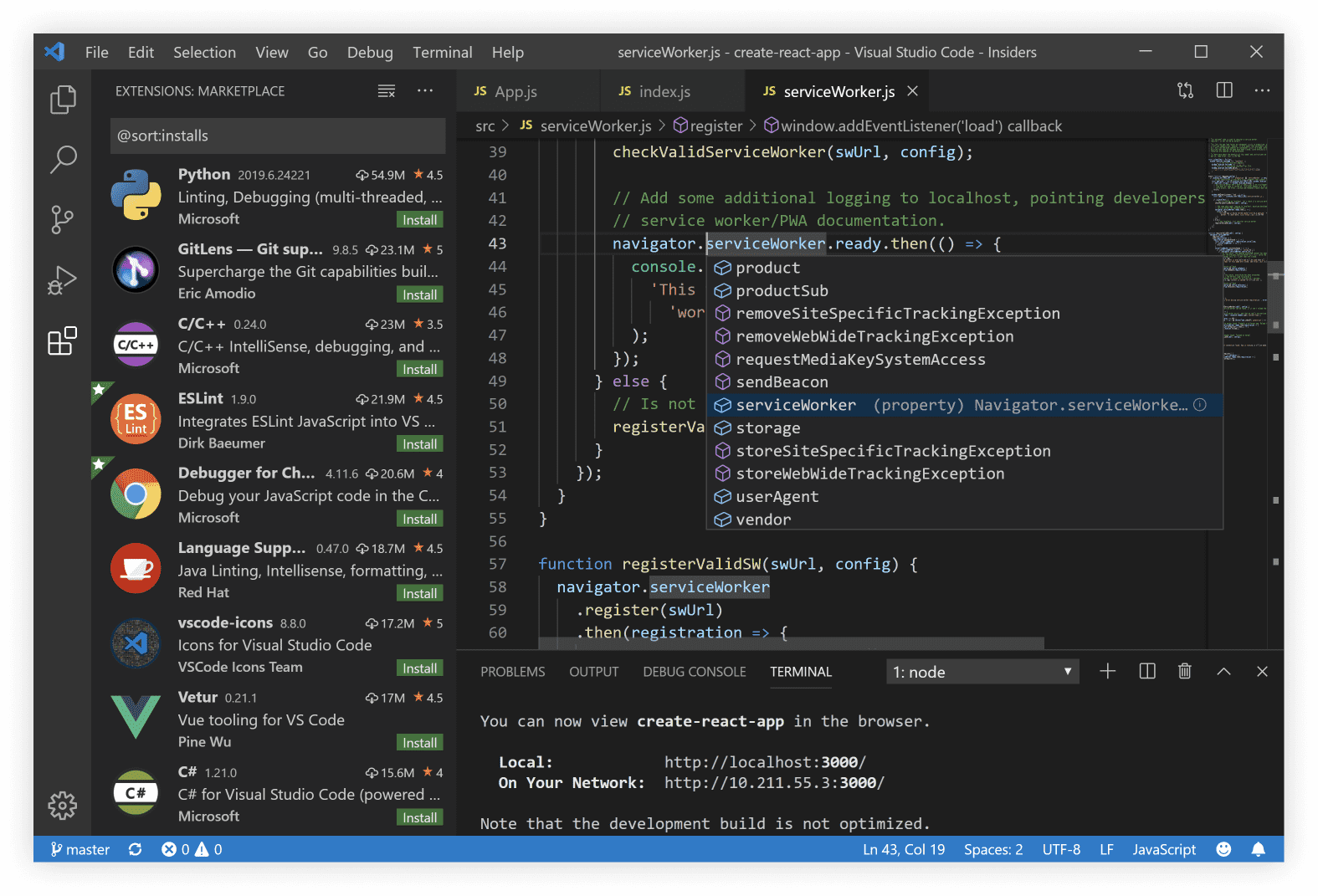
VS Code is usually the easiest recommendation because it is free, cross-platform and works well for HTML, CSS, JavaScript, PHP and Python with extensions. It has a file explorer, terminal, search, Git support and many learning-friendly plugins.
Open official VS Code site
JetBrains makes multiple IDEs. PhpStorm is focused on PHP, WebStorm on JavaScript and frontend work, and PyCharm on Python. They are heavier than a simple editor, but strong for large projects, refactoring, debugging, framework support and database work.
Open official JetBrains tools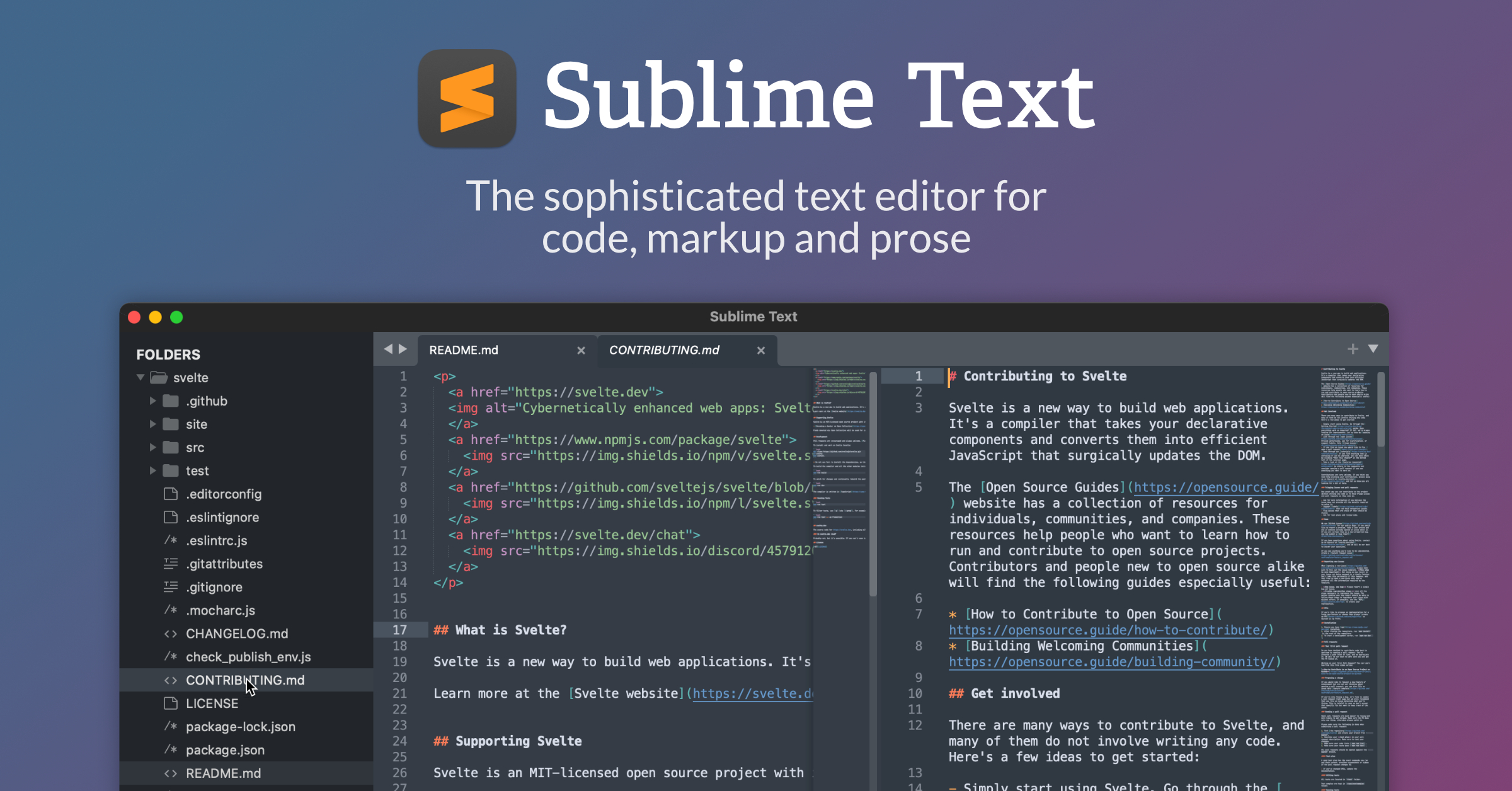
Sublime Text is useful when you want something fast, focused and polished without turning the editor into a full IDE. It is good for quick edits, markup, prose, code navigation and lightweight project work.
Open official Sublime Text site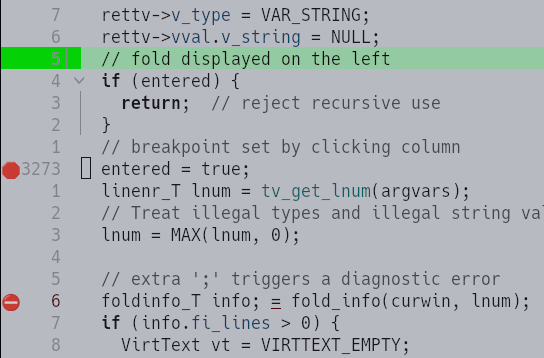

Vim is common on Linux and macOS servers, but it is not Linux-only. Neovim is a modern Vim-style editor with a strong plugin ecosystem. These tools shine over SSH, inside servers and in keyboard-first workflows.
Project folder
A professional workflow begins with one folder for the project. Do not scatter HTML files, images and CSS over different locations. Keep the project together so your editor, browser and server all point to the same place. That also makes backups, Git commits and deployment much easier later.
my-first-site/
  index.html
  assets/
    css/
      styles.css
    js/
      app.js
    img/
      hero.webp
  README.md
The first page is usually called index.html. Browsers and web servers commonly treat that file as
the default page of a folder. CSS goes in a CSS folder, JavaScript in a JS folder and images in an image folder.
That keeps the project readable even when it grows.
First workflow
Learning HTML becomes much easier when you use the same loop every time. Create a file, write a small piece of markup, save it, view it in the browser, inspect the result and then improve it. Do not write a huge page before checking it. Small steps make mistakes visible while they are still easy to fix.
Open the project folder and create index.html.
Add the doctype, html, head and body.
Save the file before judging the result in the browser.
Open the file or local server in a browser and check what changed.
Use DevTools to see the DOM, styles and console messages.
Make one focused change, then repeat the loop.
Opening pages
A simple static HTML file can be opened directly in the browser. That is fine for a first experiment. But many
real workflows work better through a local server. A local server gives you a normal web address such as
http://127.0.0.1:8021, which is closer to how a site behaves after deployment.
Good enough when you only want to see a basic HTML page render.
Better for routing, assets, modules, forms, fetch requests and production-like behavior.
Formatting and validation
Browsers forgive many HTML mistakes, but that does not mean the code is good. A clean editor setup helps you keep indentation consistent, close elements properly and keep attributes readable. Validation is the next layer: it checks whether your markup follows the rules instead of only asking whether it appears to work.
Child elements should visually sit inside their parent elements.
<section> is the normal modern style, not <SECTION>.
Write class="card" so values stay predictable and readable.
Common mistakes
When a page does not change, do not immediately assume HTML is broken. First check the workflow. Are you editing the right file? Did you save it? Is the browser showing the right URL? Is the CSS file linked correctly? Is the old page still cached? These are boring checks, but professional developers do them constantly.
You changed a copy while the browser loads another file.
The editor shows changes that the browser cannot read yet.
Assets break because the HTML file points to a different path.
The browser still shows the old version of the page.
Useful for learning, messy for production if it stays that way.
Pasted code works once, then becomes impossible to maintain.
Live code lab
This lab shows the exact idea. The left side is what you would write in your editor. The preview is what the browser renders. Change the heading, add another list item or adjust the CSS color and then run the preview.
Try it yourself
Next step
The next lesson moves from tools into authoring. You will write the basic document structure, understand the
doctype, and learn why the head and body exist before the page becomes visible.
Self-check
Do not only read this page. Answer these questions out loud or write the answers in your own notes. If one answer feels vague, revisit the examples before moving on.